

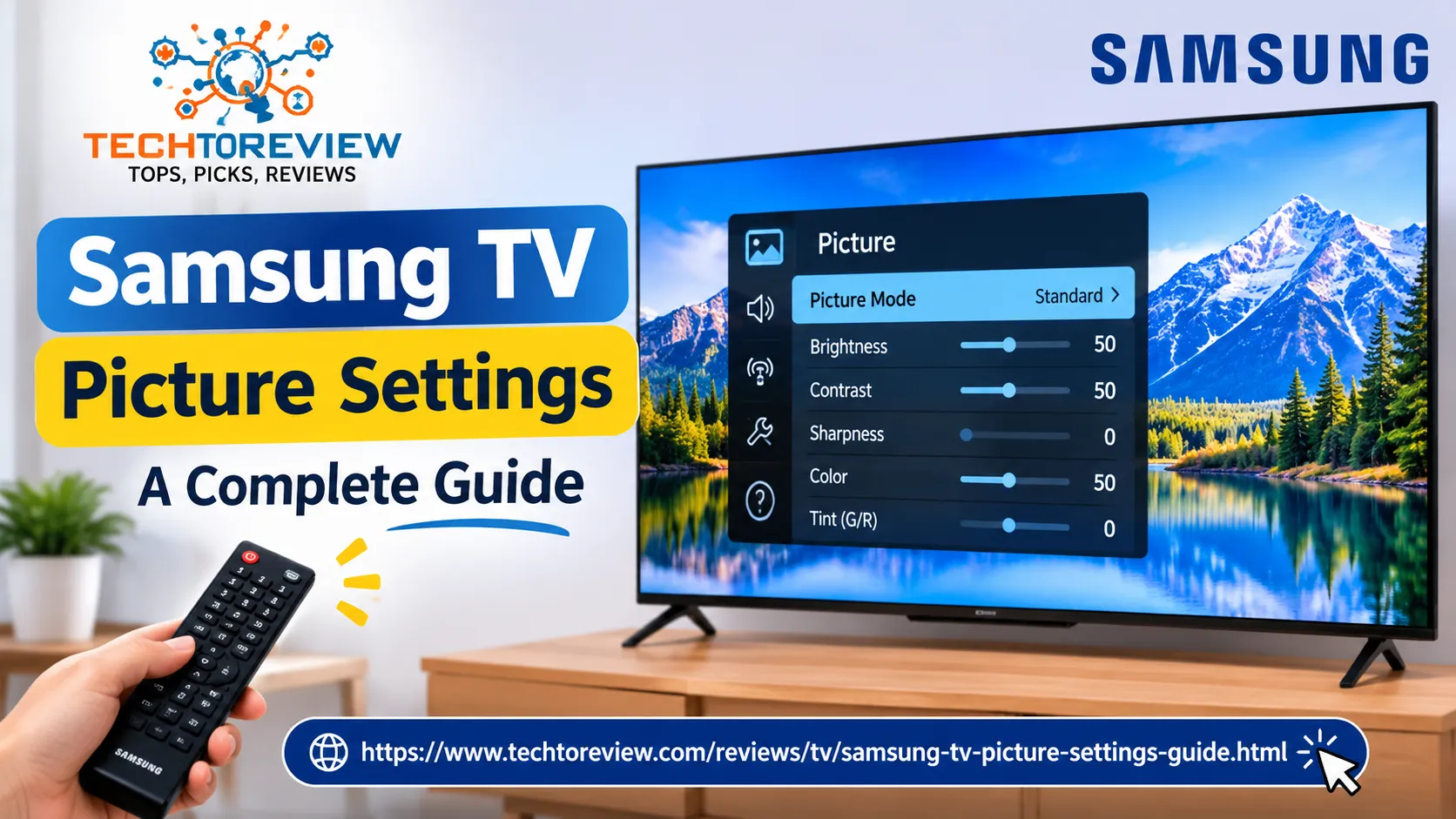

A great television experience depends on more than screen resolution. Brightness, contrast, sharpness, colour accuracy, and picture modes all influence how movies, sports, and television shows look on your screen. Samsung televisions offer several customisation options that allow viewers to adjust their displays according to their preferences and room lighting.
Understanding samsung tv picture settings can help you improve image quality without purchasing additional equipment. Whether you own a Crystal UHD, QLED, Neo QLED, or another Samsung model, learning how these controls work can make everyday viewing more enjoyable. This guide explains the best picture settings for Samsung TV, along with practical steps for adjusting different display options.
How to Access Samsung TV Picture Settings
Before changing individual options, you need to locate the picture menu. The interface may vary depending on your television model and software version.
Follow these general steps:
Press the Home button on your Samsung TV remote.
Open Settings.
Select All Settings, if available.
Choose Picture.
Open Picture Mode or Expert Settings.
Select the option you want to customise.
These samsung tv picture settings provide access to different display controls. Some older models may use slightly different menu names, so check your television’s user manual if an option is unavailable.
Choose the Right Picture Mode
Picture modes automatically adjust several display characteristics. Selecting the right mode is an important starting point when applying the best picture settings for Samsung TV.
Standard Mode: Provides balanced picture quality and works well for everyday television viewing.
Dynamic Mode: Produces a brighter and more vivid image, making it useful in well-lit rooms.
Movie Mode: Offers a more cinematic appearance and is generally suitable for watching films in darker environments.
FILMMAKER MODE: Preserves important visual characteristics of the original content, including its intended colour and motion presentation.
Eco Mode: Prioritises energy savings by adjusting certain display characteristics.
For natural-looking images, Movie or FILMMAKER MODE is a good starting point when watching films. Standard is a practical choice for everyday use.
Adjust Brightness and Contrast
Brightness and contrast are two important controls in samsung tv picture settings. Although they sound similar, they perform different functions.
Brightness: Controls the visibility of darker areas and the overall picture level, depending on the model. Adjust it carefully so that dark scenes retain visible details.
Contrast: Controls the difference between bright and dark areas. If the setting is too high, bright details may become difficult to see.
For the best picture settings for Samsung TV, avoid automatically setting every slider to its maximum. Instead, play a familiar movie scene and make small adjustments until highlights and shadows look balanced.
Set Sharpness and Colour
Sharpness controls the appearance of object edges. Excessive sharpness can create artificial outlines around people, buildings, and other objects. A moderate setting usually produces a more natural image.
Colour controls saturation, which affects how vivid colours appear. If saturation is too high, skin tones and natural objects may look unrealistic. Keep colour adjustments moderate and compare the result with the original image.
Tint, sometimes displayed as Tint (G/R), helps balance green and red tones. Most viewers can leave this setting near its default value unless the picture has a noticeable colour imbalance.
These adjustments are useful parts of samsung tv picture settings, particularly when the default image looks overly vivid or artificial.
Configure Colour Tone and Picture Clarity
Colour Tone changes the overall warmth or coolness of the image. Depending on the model, options may include Cool, Standard, Warm1, and Warm2.
Warm settings can produce a more natural cinematic appearance, while cooler settings create a bluer look. Try different options with familiar content before deciding which one suits your viewing preference.
Picture Clarity Settings are designed to manage motion. They may include options such as blur reduction, judder reduction, or motion interpolation. These controls can help with fast-moving sports and action scenes, but excessive processing may make films look unnatural.
For the best picture settings for Samsung TV, adjust motion controls according to the type of content you watch rather than applying maximum processing everywhere.
Recommended Settings for Different Viewing Conditions
There is no single configuration that works perfectly for every Samsung television. Panel technology, room lighting, content quality, and personal preference all influence the result.
Consider these starting recommendations:
Everyday television
Standard
Bright room
Dynamic or Standard
Movies in a dark room
Movie or FILMMAKER MODE
Energy saving
Eco
Sports and fast action
Standard with suitable motion settings
The best picture settings for Samsung TV may also differ between SDR and HDR content. HDR programmes use additional brightness and colour information, so avoid copying settings from an SDR source without checking the result.
How to Reset Samsung TV Picture Settings
If you experiment with multiple options and the picture starts looking worse, you can restore the original configuration.
Follow these steps on supported models:
Open Settings and select All Settings.
Choose Picture.
Select Expert Settings.
Find Reset Picture.
Confirm the reset when prompted.
Resetting samsung tv picture settings can help resolve problems caused by unwanted adjustments. The exact menu path may differ between television generations.
Common Mistakes to Avoid
Many viewers change several display options at once, making it difficult to identify which adjustment improved or reduced picture quality. Avoid these common mistakes:
Setting brightness and contrast to maximum without checking image details.
Increasing sharpness excessively.
Using Dynamic Mode in every viewing environment.
Ignoring room lighting while adjusting the display.
Applying identical settings to every content type.
Changing advanced colour controls without understanding their purpose.
For the best picture settings for Samsung TV, make one adjustment at a time and compare the image before and after each change.
Final Thoughts
Learning how to customise your television can make a noticeable difference to your viewing experience. The right picture mode, balanced brightness, natural colours, and sensible motion controls can help you enjoy films, sports, and everyday programmes.
Samsung televisions provide flexible display options, but the ideal configuration depends on your model and surroundings. Start with a suitable picture mode, make gradual adjustments, and avoid unnecessary enhancements. With a little experimentation, you can find samsung tv picture settings that deliver a comfortable and natural image.
Disclaimer: Menu names and available features may vary by Samsung TV model, region, input source, and software version. Refer to Samsung’s official support documentation for model-specific instructions.



Join the conversation