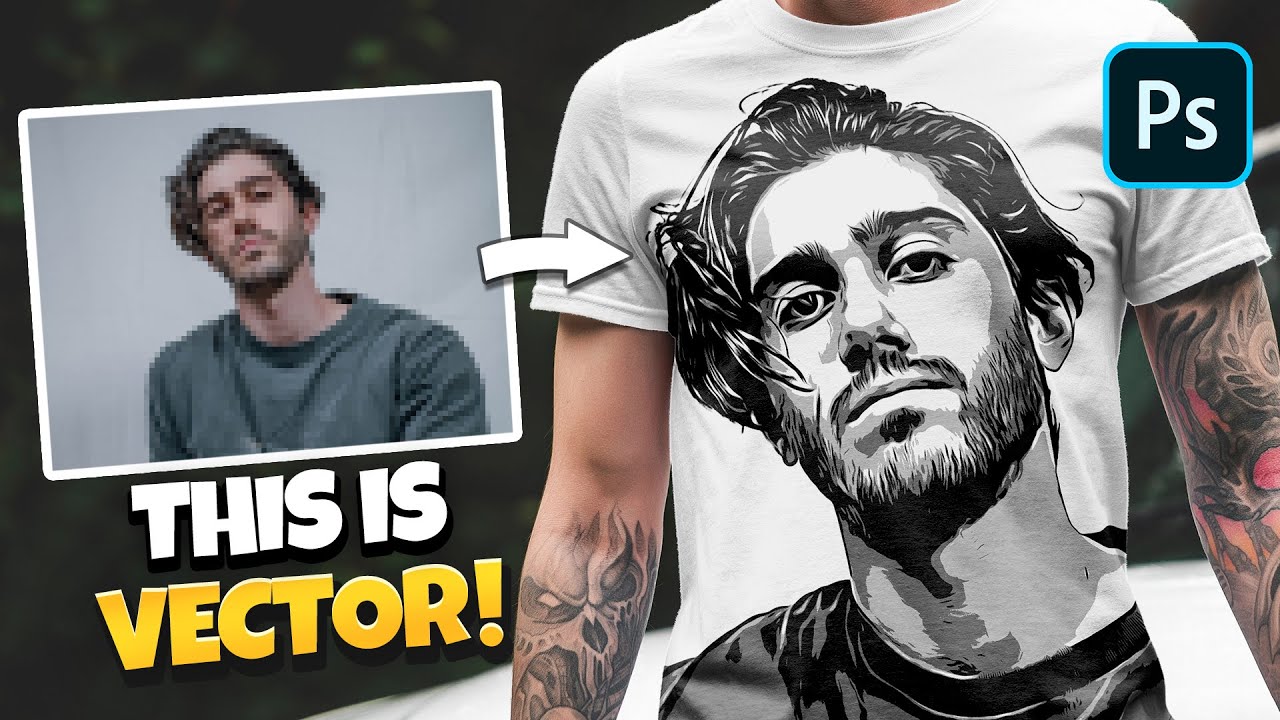

A graphic can look attractive on a computer screen but become difficult to use when it needs to be printed on a large banner, displayed on a storefront, or added to custom apparel. Blurry edges, rough outlines, and pixelated lettering can reduce the overall quality of a design.
Learning how to convert image to vector can help solve this problem by turning ordinary pixel-based artwork into scalable graphics. This process is especially useful for businesses that need their logos and illustrations to remain sharp across different sizes and production methods.
Whether you have an old company logo, a small PNG file, a JPG downloaded from a website, or a scanned drawing, understanding image conversion can help you prepare artwork for professional use.
What Does It Mean to Convert an Image to Vector?
Converting an image to vector means recreating a raster graphic as vector artwork. Raster images use pixels to display pictures, while vector graphics use mathematical paths to define shapes, curves, and outlines.
When a small raster image is enlarged, its pixels can become visible. A properly constructed vector graphic can be resized without losing the sharpness of its vector paths.
For example, a small business logo saved as a JPG may appear blurry when enlarged for a vehicle wrap. Converting the logo into vector artwork allows the designer to create smoother outlines and prepare a scalable file for the intended application.
Common source formats include JPG, PNG, BMP, and scanned images. Depending on the project, the resulting artwork may be delivered as AI, EPS, SVG, or a vector-based PDF.
It is important to understand that conversion does not automatically restore details that are missing from the original image. Complex or damaged artwork may require manual reconstruction to achieve a satisfactory result.
Why Should You Convert an Image to Vector?
Vector artwork offers practical advantages for businesses, designers, and printing professionals.
Maintain Sharpness at Different Sizes
One of the main reasons to convert an image to vector is scalability. A well-made vector logo can be used on a small product label or a large advertising sign without the pixelation associated with enlarging a low-resolution raster image.
This flexibility is valuable for brands that use the same artwork across multiple marketing channels.
Make Logos Easier to Edit
A raster image may combine every visual element into one flat picture. A properly structured vector file can contain separate paths and shapes, making it easier to adjust outlines, change colors, or modify individual elements.
The level of editability depends on how the vector file was created.
Prepare Graphics for Commercial Printing
Professional printing often requires clean artwork that matches the supplier’s specifications. Vector graphics can help maintain sharp edges and provide better control over shapes and colors.
Some printing processes also require color separation, outlined text, or specific document settings, so the final file should be prepared according to the production method.
Reuse Artwork Across Different Products
Businesses may need the same design for T-shirts, packaging, promotional merchandise, business cards, and signage.
A clean vector master provides a useful starting point for adapting the artwork to different dimensions without repeatedly enlarging a low-quality image.
How an Image to Vector Converter Works
An image to vector converter is a tool or service that transforms pixel-based artwork into vector paths. Some converters use automatic tracing, while professional services may combine software tools with manual drawing and refinement.
The general process includes the following steps.
Step 1: Upload or Import Your Image
Start with the clearest version of your design. A high-quality image makes it easier to identify the correct shapes, colors, lettering, and outlines.
Common formats include PNG, JPG, and BMP. Some applications also accept TIFF or other image formats.
Step 2: Analyze the Artwork
The conversion tool examines the image to identify edges, color areas, and shapes that can be represented as paths.
Simple graphics with solid colors and clear outlines are generally easier to trace than photographs or heavily textured illustrations.
Step 3: Create Vector Paths
The software generates paths based on the image’s visible features. Automatic tracing can be useful for basic logos, symbols, and high-contrast artwork.
However, the generated paths may contain unnecessary points, uneven curves, or small gaps. Manual adjustments may be needed to improve the result.
Step 4: Refine the Design
Review the converted graphic at different sizes. Check the outlines, lettering, spacing, and colors against the original reference.
For logos and commercial artwork, careful refinement can make the file easier to edit and more suitable for production.
Step 5: Export the Correct File Format
Save the finished artwork in a format suitable for the intended application.
SVG may work well for web graphics and compatible cutting software, while AI or EPS may be appropriate for particular design and printing workflows. Always confirm the requirements of the printer or manufacturer before exporting.
Join the conversation