

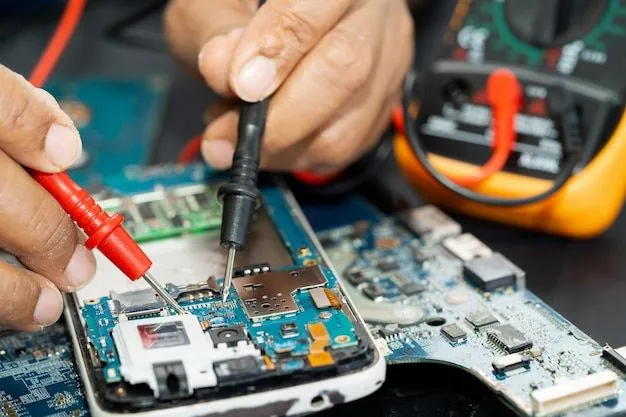

A MacBook keyboard is an important part of everyday work. Whether you use your laptop for studying, office tasks, browsing, or creative projects, every key needs to work properly. However, keyboard problems can develop over time because of dust, liquid spills, physical damage, or regular use. Understanding these problems can help you decide when professional repair is necessary. A reliable MacBook Keyboard Repair Service can help identify the cause of the issue and restore normal keyboard performance.
Common MacBook Keyboard Problems
Keyboard issues can appear in different ways. Sometimes one key stops responding, while other problems can affect the entire keyboard. Recognising the symptoms early can help prevent further damage.
1. Keys Not Responding
One of the most common problems is when certain keys stop working. You may press a key several times without getting a response. This can happen because of dirt beneath the keys, internal damage, or a connection problem. If several keys stop working together, professional inspection may be needed.
2. Sticky or Difficult Keys
Keys can become sticky when food particles, dust, or liquid enter the keyboard. You may notice that a key feels harder to press or does not return to its normal position. Avoid using sharp objects to remove dirt because this can damage the key mechanism.
3. Repeated Letters While Typing
Sometimes one key produces multiple letters even when you press it only once. This can interrupt writing and make normal tasks frustrating. The issue may be related to software settings or a damaged keyboard component. Checking the keyboard settings is a useful first step.
4. Keyboard Not Working After Liquid Spills
Liquid damage can create serious keyboard problems. Even a small spill may affect internal components and cause keys to stop responding. Turn off the MacBook immediately if liquid enters the keyboard. Disconnect the charger and avoid turning the device back on until it has been checked by a professional.
Main Reasons MacBook Keyboards Stop Working
There are several reasons why a keyboard may develop problems. Dust and small particles can collect around the keys and affect their movement. Regular wear can also weaken individual key mechanisms.
Liquid exposure is another common cause. Water, coffee, and other drinks can damage electronic parts if they enter the laptop. Physical pressure, accidental drops, and previous repair work may also affect keyboard performance.
Software problems should not be ignored either. An outdated operating system, incorrect keyboard settings, or temporary system errors may create typing difficulties. A proper diagnosis helps determine whether the issue is software-related or requires hardware repair.
When Should You Get Professional Keyboard Repair?
You should consider professional help when several keys stop responding, typing becomes unreliable, or the keyboard stops working after liquid exposure. Repeated problems should not be ignored because continued use may make the situation worse.
A technician can inspect the keyboard, check internal connections, and identify damaged components. Depending on the MacBook model and the condition of the device, the repair may involve cleaning, replacing individual components, or installing a replacement keyboard.
If your laptop has other charging problems, a MacBook charging port repair service may also be needed after a separate inspection. This helps identify whether the issue is limited to the keyboard or involves another part of the device.
Can You Fix MacBook Keyboard Problems at Home?
Some basic keyboard issues can be checked at home. Restarting your MacBook may solve temporary software problems. You can also check keyboard settings and make sure that no unwanted accessibility features are enabled.
Using a soft, dry cleaning cloth can help remove surface dust. However, avoid pouring cleaning liquid directly onto the keyboard. Do not remove keys unless you understand the correct process for your specific MacBook model.
Opening a MacBook without the right tools and experience can damage delicate components. If the keyboard has liquid damage, broken keys, or internal faults, professional inspection is a safer choice.
What Happens During a Professional Keyboard Repair?
A professional repair usually begins with an inspection. The technician checks which keys are affected and looks for visible signs of physical or liquid damage.
The next step is diagnosis. The technician may test the keyboard, examine internal connections, and check whether software issues are contributing to the problem.
After identifying the cause, the repair options can be explained. Some problems may only require cleaning or a small adjustment, while others need component replacement. The customer should receive information about the expected cost and repair time before approving the work.
After the repair, the keyboard should be tested to confirm that the keys respond correctly. Testing helps ensure that normal typing functions have been restored.
What If Your MacBook Has Other Problems?
Keyboard problems are not the only reason a MacBook may need attention. Charging faults, battery issues, slow performance, and unexpected shutdowns can also affect everyday use.
For example, if the device does not start, a laptop won’t turn on repair assessment can help identify possible power, battery, or hardware faults. It is important to describe all symptoms clearly so the technician can investigate the correct problem.
You should also protect important files before any major repair whenever possible. If your device contains important documents, photos, or work files, ask about Data recovery and data transfer options when necessary.
How to Keep Your MacBook Keyboard in Good Condition
Good maintenance can reduce the risk of keyboard problems. Keep food and drinks away from your laptop while working. Small spills and crumbs can cause problems that are difficult to fix later.
Clean the keyboard gently with a soft cloth and follow the manufacturer’s cleaning guidance. Avoid pressing keys too hard because extra pressure does not improve typing performance.
Use a suitable laptop bag when carrying your MacBook. This helps protect it from accidental pressure and physical damage. Keeping your operating system updated can also help prevent software-related keyboard issues.
If you use a tablet alongside your laptop, remember that careful maintenance matters for every device. For example, Tablet Repair near Birch is a useful local service consideration when a tablet develops screen, battery, or charging problems.
How to Choose a Reliable MacBook Repair Shop
Choosing the right repair provider is important. Look for technicians who understand Apple devices and have experience diagnosing different MacBook models.
Ask whether the shop offers a clear diagnosis before starting the repair. It is also helpful to understand the estimated price, repair time, replacement part options, and warranty conditions.
A reliable repair provider should explain the problem in simple language and answer your questions. Check whether your personal files and device privacy will be respected during the repair process.
Do not select a repair shop based only on the lowest price. Good communication, suitable repair methods, and clear service terms are also important.
Frequently Asked Questions
1. Why are some MacBook keys not working?
Keys may stop working because of dust, liquid damage, worn components, or software settings. A proper inspection can help identify the cause.
2. Can a MacBook keyboard be repaired?
Yes. Many keyboard problems can be repaired. The right solution depends on the MacBook model and the type of damage.
3. How long does keyboard repair take?
Repair time depends on the problem, model, and availability of replacement parts. A technician can provide an estimated timeframe after diagnosis.
4. Is it worth repairing an old MacBook keyboard?
It can be worthwhile if the MacBook still meets your needs and the repair cost is reasonable compared with replacing the device.
5. Can liquid damage affect the entire keyboard?
Yes. Liquid can spread beneath the keys and affect internal components. Turning off the MacBook and arranging an inspection quickly can help reduce further damage.
Conclusion
A faulty keyboard can make even simple computer tasks difficult. Understanding the warning signs, keeping your device clean, and seeking professional help when necessary can protect your MacBook from further problems. Always choose a repair provider that explains the issue clearly and offers suitable repair options. For professional device assistance and repair guidance, True Cell Tech can help customers explore suitable solutions for their MacBook and other electronic devices.



Join the conversation